
SAP Concur Login: Step-by-Step Guide to Web, Mobile, SSO & Troubleshooting
Table of Contents
- • 1. Official SAP Concur Login Portals & Regional URLs
- • 2. The Three Ways to Sign In to SAP Concur
- • 3. Step-by-Step: Standard Desktop Web Login
- ↳ Step 1: Open the Official Portal
- ↳ Step 2: Enter Your User Identifier
- ↳ Step 3: Enter Your Password
- ↳ Step 4: Complete Two-Factor Authentication (2FA)
- • 4. Enterprise Single Sign-On (SSO): How It Works
- ↳ Real-World Business Example: Logging In via Corporate SSO
- ↳ What if You Access Concur from Outside the Company Portal?
- • 5. How to Log In on the SAP Concur Mobile App
- ↳ Method 1: Using Your Company Code (Most Popular)
- ↳ Method 2: Scanning a QR Code
- ↳ Method 3: Sign In with Email Magic Link
- • 6. Setting Up Two-Factor Authentication (2FA)
- ↳ Step-by-Step 2FA Pairing:
- • 7. The 7 Most Common SAP Concur Login Errors & How to Fix Them
- ↳ Error 1: “Account Temporarily Locked / Too Many Failed Attempts”
- ↳ Error 2: “We Could Not Recognize Your Username or Email”
- ↳ Error 3: “SAML 2.0 Authentication Failed / SSO Redirect Loop”
- ↳ Error 4: “Invalid Company Code on Mobile App”
- ↳ Error 5: “Invalid Two-Factor Code (TOTP Rejected)”
- ↳ Error 6: “Session Expired Due to Inactivity”
- ↳ Error 7: “User Account Is Inactive / Terminated”
- • 8. Security Best Practices for Corporate Expense Portals
- • 9. Frequently Asked Questions (FAQ)
- ↳ What should I do if I lost my phone and cannot complete 2FA?
- ↳ Can I be logged into SAP Concur on multiple devices simultaneously?
- ↳ Why does my password reset link expire so quickly?
- ↳ How do I switch between different corporate accounts in Concur?
- • Summary & Next Steps
- ↳ Quick Login Checklist
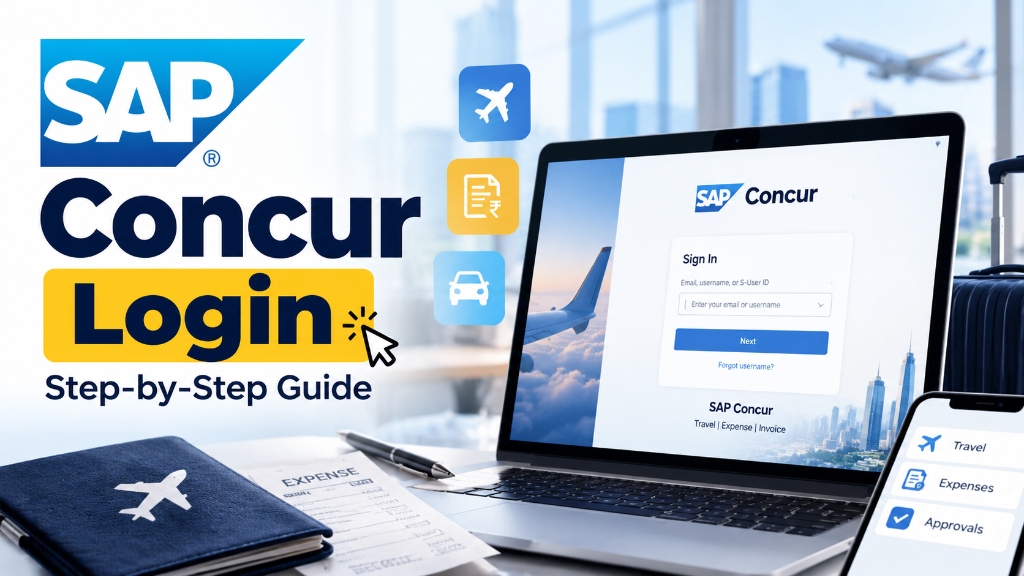 Figure 1: Logging into SAP Concur securely via corporate desktop browsers, mobile apps, and Single Sign-On (SSO) authentication.
Few things derail an employee’s workday faster than being locked out of their corporate expense portal right before an expense filing deadline or while standing at an airport baggage counter trying to book a hotel.
If you have ever stared at an error screen saying “We could not verify your credentials” or found yourself trapped in an infinite Single Sign-On (SSO) redirect loop, you are not alone.
Because SAP Concur is a multi-tenant cloud platform used by millions of enterprise users worldwide, its authentication setup involves multiple global data centers, enterprise identity providers (like Microsoft Entra ID and Okta), company codes, and two-factor authentication (2FA) protocols.
Whether you are a new corporate employee logging in for the very first time, a business traveler configuring the Concur mobile app on your smartphone, or an IT administrator troubleshooting employee access tickets, this hands-on guide covers everything you need to know about the SAP Concur login process.
Before jumping into technical troubleshooting, you can check our comprehensive What is SAP guide, review SAP accounting software fundamentals, or look up common financial codes in our free T-Code Lookup Tool.
1. Official SAP Concur Login Portals & Regional URLs
One of the most common reasons users fail to log in is navigating to the wrong regional data center URL. SAP Concur operates across several geographically isolated cloud clusters to comply with local data sovereignty laws (such as GDPR in Europe).
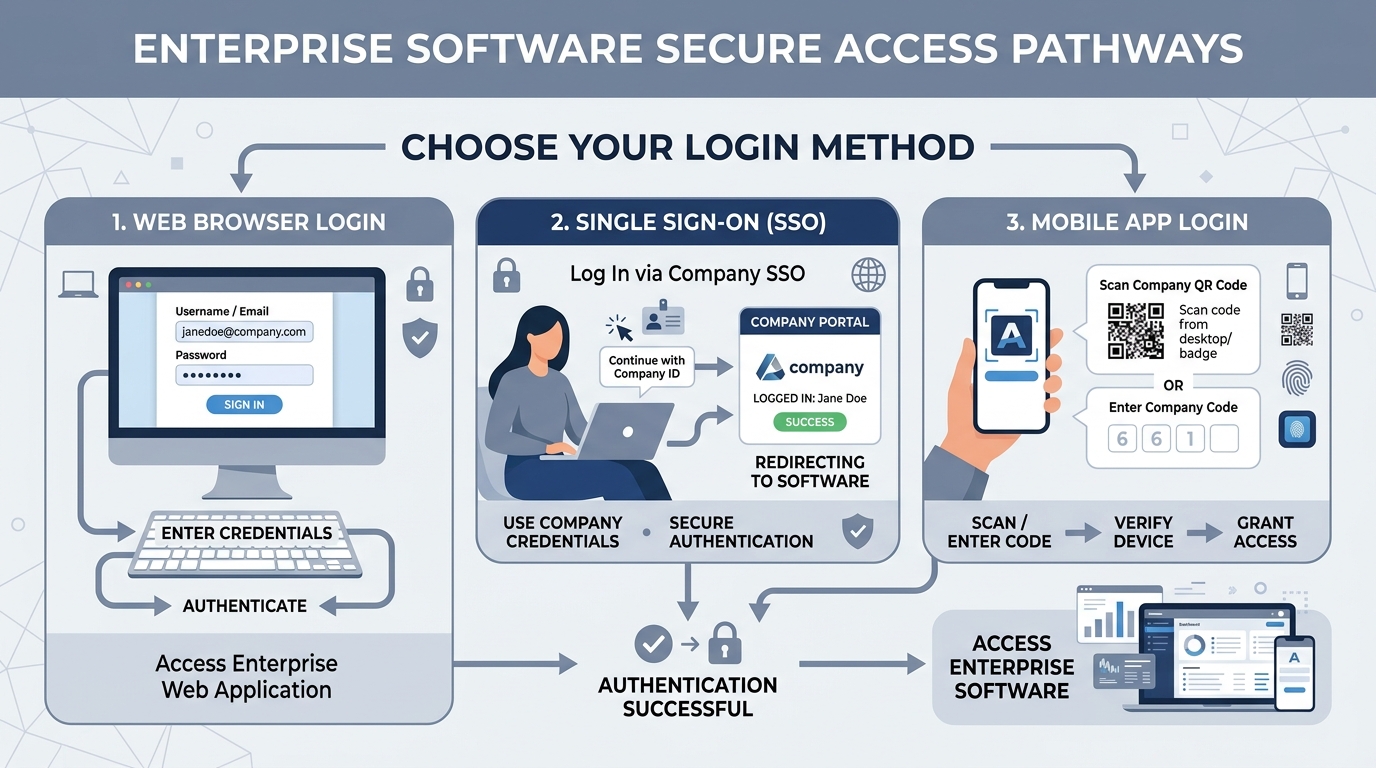 Figure 2: The three primary ways employees access SAP Concur: Direct Web Browser, Company Single Sign-On (SSO), and Mobile App with Company Code.
Here are the official, verified web login URLs for SAP Concur:
| Region / Environment | Official Login URL | Who Uses It? |
|---|---|---|
| Global / North America (US Data Center) | concursolutions.com | Standard global corporations, US, Latin America, and Asia-Pacific accounts. |
| Europe & EMEA (EU Data Center) | eu1.concursolutions.com | Organizations subject to European data residency requirements. |
| China Data Center | concurcdc.cn | Mainland China corporate instances operating under local telecom regulations. |
| US Federal & Public Sector | Standard secure government gateway | US government agencies and defense contractors requiring FedRAMP compliance. |
Pro Tip: Never use third-party search engine ad links when searching for “Concur login”. Phishing campaigns frequently target corporate travel logins to steal employee corporate card credentials. Always bookmark your company’s dedicated internal portal link or use the direct domain concursolutions.com.
2. The Three Ways to Sign In to SAP Concur
Depending on how your organization’s IT and security team configured your instance, you will use one of three primary authentication paths:
┌─────────────────────────────────────────────────────────────┐
│                 SAP CONCUR ACCESS METHODS                   │
├──────────────────────────────┬──────────────────────────────┤
│ 1. Direct Web Login          │ Enter corporate email/user   │
│                              │ + password + 2FA code        │
├──────────────────────────────┼──────────────────────────────┤
│ 2. Single Sign-On (SSO)      │ Authenticate via Okta,       │
│                              │ Microsoft Entra, or Ping     │
├──────────────────────────────┼──────────────────────────────┤
│ 3. Mobile App (iOS / Android)│ Log in with Company Code,    │
│                              │ QR Code, or Email Magic Link │
└──────────────────────────────┴──────────────────────────────┘
3. Step-by-Step: Standard Desktop Web Login
If your company uses direct username and password authentication (with mandatory two-factor authentication), follow these exact steps:
Step 1: Open the Official Portal
Open a supported web browser (Google Chrome, Microsoft Edge, Mozilla Firefox, or Safari) and go to concursolutions.com.
Step 2: Enter Your User Identifier
In the Sign In box, enter your designated identifier:
- Most companies use your official work email address (e.g.,
[email protected]). - Some organizations use an assigned Login ID or internal employee alphanumeric code.
- If you are an SAP contractor or partner, you may use your SAP Universal ID or S-User ID.
Click Next.
Step 3: Enter Your Password
Once your username is recognized, the password input field will appear. Type your password carefully. Remember that passwords are case-sensitive and must comply with enterprise complexity standards (minimum 8–14 characters, mixed case, numbers, and special characters).
Step 4: Complete Two-Factor Authentication (2FA)
SAP Concur mandates multi-factor authentication for all direct logins:
- Open your authenticator app on your smartphone (such as SAP Concur Authenticator, Microsoft Authenticator, or Google Authenticator).
- Find the 6-digit dynamic code corresponding to SAP Concur.
- Enter the 6-digit one-time password (TOTP) and click Sign In.
You will land directly on the Concur home dashboard, displaying quick tabs for Travel, Expenses, Approvals, and Reporting.
4. Enterprise Single Sign-On (SSO): How It Works
Most mid-sized to large enterprises do not require employees to remember a separate password for SAP Concur. Instead, they configure Single Sign-On (SSO) using SAML 2.0 (Security Assertion Markup Language).
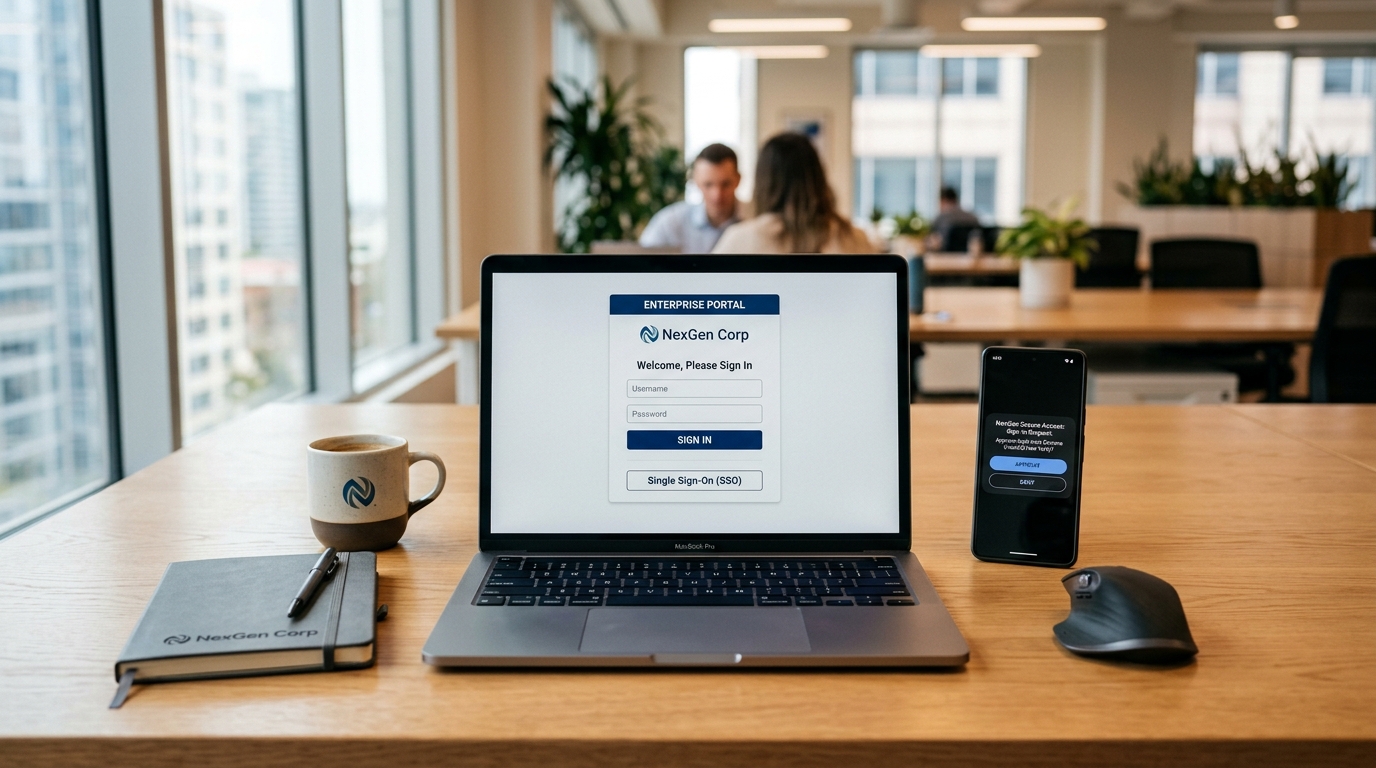 Figure 3: Corporate Single Sign-On (SSO) securely validates employee identity using corporate credentials and mobile push 2FA.
Real-World Business Example: Logging In via Corporate SSO
Let us look at a real-world scenario. Priya, a financial analyst at a global retail company, needs to submit travel expenses for an audit visit.
- Priya opens her company’s internal application launcher (e.g., Okta Dashboard or Microsoft My Apps portal).
- She clicks on the SAP Concur application icon.
- Behind the scenes:
- The browser initiates a SAML request to the company’s Identity Provider (IdP) such as Microsoft Entra ID or Okta.
- Because Priya already logged into her work laptop with Windows Hello / corporate credentials, the IdP generates a cryptographically signed SAML assertion token verifying her identity.
- Concur receives the token, validates the certificate, matches Priya’s employee record with her cost center in SAP S/4HANA Finance, and opens her dashboard instantly without prompting for a separate password.
What if You Access Concur from Outside the Company Portal?
If Priya navigates directly to concursolutions.com instead of her company portal:
- She types her work email:
[email protected]. - Concur detects the domain
@retailcorp.comin its tenant directory. - Concur automatically redirects her browser to her company’s corporate login page (
login.microsoftonline.comorretailcorp.okta.com). - She approves a quick push notification on her phone, and the system redirects her back to Concur fully authenticated.
5. How to Log In on the SAP Concur Mobile App
Business travel happens on the road, not behind an office desk. The SAP Concur Mobile App (available on Apple App Store for iOS and Google Play Store for Android) allows you to capture receipts with ExpenseIt OCR, review pending approvals, and check flight itineraries.
Logging into the mobile app for the first time requires linking your device to your corporate profile. You have three convenient methods:
                       MOBILE LOGIN METHODS
                                │
       ┌────────────────────────┼────────────────────────┐
       ▼                        ▼                        ▼
[ Company Code ]        [ QR Code Scan ]        [ SSO Email Link ]
Enter 6-digit code      Scan code from          Receive secure sign-in
from desktop profile    desktop Settings        link in work inbox
Method 1: Using Your Company Code (Most Popular)
Your Company Code is an alphanumeric code (usually 6 characters, e.g., AB12CD or 6T9PQR) that uniquely identifies your employer within the Concur multi-tenant database.
- Log into SAP Concur on your desktop web browser.
- In the top right navigation bar, click Profile > Profile Settings.
- In the left-hand menu under Mobile Setup, click Concur Mobile Registration.
- You will see your designated Company Code displayed on the screen.
- On your smartphone:
- Open the SAP Concur app.
- Tap Sign In.
- Tap Company Code and enter your code.
- Enter your corporate email and password (or proceed via company SSO).
Method 2: Scanning a QR Code
If your company has enabled QR pairing:
- Navigate to Profile Settings > Concur Mobile Registration on your computer.
- Click Generate QR Code.
- Open the SAP Concur app on your smartphone, tap Scan QR Code, and point your camera at your desktop monitor.
- The mobile app automatically registers your corporate account, prompts for your corporate credentials, and enables biometric login (Face ID or fingerprint recognition) for all future sessions.
Method 3: Sign In with Email Magic Link
If you do not have your desktop computer handy:
- Open the mobile app and type your work email address.
- Tap Sign In With Email Link.
- Concur dispatches a secure, single-use authentication link to your corporate inbox.
- Open the email on your phone and tap the link to instantly unlock the app.
6. Setting Up Two-Factor Authentication (2FA)
To comply with global financial security frameworks like SOC 2 and ISO 27001, SAP Concur requires multi-factor verification for non-SSO accounts.
Step-by-Step 2FA Pairing:
- When prompted upon your initial login, Concur will display a secret QR code on your screen.
- Open your preferred authenticator app:
- Microsoft Authenticator
- Google Authenticator
- Twilio Authy
- SAP Authenticator
- Tap Add Account > Work or School Account > Scan QR Code.
- Scan the barcode displayed on your computer screen.
- The authenticator app will begin generating a 6-digit number that refreshes every 30 seconds.
- Type the current 6-digit number into the Concur confirmation box and click Verify and Continue.
- Important: Copy and store the emergency backup recovery codes shown on the next screen in a secure password manager. If you replace your phone or accidentally wipe your device, these backup codes are your only way to regain access without contacting your company IT helpdesk.
7. The 7 Most Common SAP Concur Login Errors & How to Fix Them
When login failures occur, generic error messages can be confusing. Below is an exhaustive troubleshooting reference for the most frequent issues encountered by corporate users:
┌─────────────────────────────────────────────────────────────┐
│               CONCUR LOGIN TROUBLESHOOTING MATRIX           │
├──────────────────────────────┬──────────────────────────────┤
│ Error Symptom                │ Root Cause & Immediate Fix   │
├──────────────────────────────┼──────────────────────────────┤
│ Account Locked Out           │ Too many invalid attempts;   │
│                              │ Wait 15 mins or reset pass   │
├──────────────────────────────┼──────────────────────────────┤
│ Username Not Recognized      │ Domain typo or inactive HR   │
│                              │ record in SuccessFactors     │
├──────────────────────────────┼──────────────────────────────┤
│ SAML 2.0 / SSO Loop          │ Expired X.509 IdP cert or    │
│                              │ browser cookie conflict      │
├──────────────────────────────┼──────────────────────────────┤
│ Invalid Mobile Company Code  │ Code refreshed in Settings   │
│                              │ or sandbox instance selected │
├──────────────────────────────┼──────────────────────────────┤
│ 2FA Code Rejected            │ Smartphone system clock out  │
│                              │ of sync (TOTP time drift)    │
└──────────────────────────────┴──────────────────────────────┘
Error 1: “Account Temporarily Locked / Too Many Failed Attempts”
- Why it happens: Entering an incorrect password 5 consecutive times triggers an automated security lock to prevent brute-force attacks.
- How to fix it:
- Do not keep typing guesses. Concur enforces a standard 15-minute lockout timer.
- After 15 minutes, click the Forgot password? link on the login screen.
- Enter your work email. A password reset token will arrive in your inbox.
- Ensure your new password does not reuse your last 4 previous corporate passwords.
Error 2: “We Could Not Recognize Your Username or Email”
- Why it happens: This typically affects new employees who recently joined the company.
- How to fix it:
- Check for Alias Mismatches: If your legal name is Robert but you go by Bob, your corporate email might be
[email protected], while your SAP master record in SAP SuccessFactors is created under[email protected]. Always check your official HR welcome letter. - Pending Overnight Batch Sync: In many enterprises, new employee records are created in Active Directory and synchronized to SAP Concur via an automated nightly batch job. If today is your first day, your profile may not be active in Concur until tomorrow morning.
- Check for Alias Mismatches: If your legal name is Robert but you go by Bob, your corporate email might be
Error 3: “SAML 2.0 Authentication Failed / SSO Redirect Loop”
- Why it happens: When logging in via corporate SSO, your browser bounces back and forth between
login.microsoftonline.comandconcursolutions.com, ending in an HTTP 400 or 500 error. - How to fix it:
- Clear Browser Cache and Cookies: Old authentication cookies frequently conflict with refreshed SAML tokens. Clear cookies for both
concursolutions.comand your company identity provider. - Try Incognito / Private Browsing: Open a clean Private window. If login succeeds in Incognito, an aggressive browser extension (such as an ad blocker or privacy plugin) is intercepting the SAML POST request.
- Contact IT for Certificate Validation: If multiple team members report the same SAML error simultaneously, your company’s IT administrator likely forgot to renew the corporate X.509 Signing Certificate in Microsoft Entra or Okta.
- Clear Browser Cache and Cookies: Old authentication cookies frequently conflict with refreshed SAML tokens. Clear cookies for both
Error 4: “Invalid Company Code on Mobile App”
- Why it happens: The Concur mobile app displays an error stating the company code is unrecognized or inactive.
- How to fix it:
- Company codes can be refreshed by system administrators during ERP landscape migrations (such as shifting from SAP ECC to SAP S/4HANA Cloud).
- Always generate a fresh Company Code by opening your desktop portal: Profile > Profile Settings > Concur Mobile Registration.
- Make sure you did not select the “Implementation / Test Sandbox” server toggle in your mobile app settings. Production accounts only work on the production cluster.
Error 5: “Invalid Two-Factor Code (TOTP Rejected)”
- Why it happens: You typed the 6-digit number from your authenticator app before the countdown expired, but Concur repeatedly claims the code is incorrect.
- How to fix it:
- Time-based One-Time Passwords (TOTP) rely on your phone’s clock matching the atomic server clock within a narrow 30-second window.
- If your phone clock is manual and off by even 15 seconds, the generated code will be mathematically invalid.
- On iPhone: Go to Settings > General > Date & Time > turn on Set Automatically.
- On Android: Go to Settings > System > Date & Time > turn on Automatic Date & Time. In Google Authenticator, tap Settings > Time correction for codes > Sync now.
Error 6: “Session Expired Due to Inactivity”
- Why it happens: To protect confidential financial and employee reimbursement data, SAP Concur terminates idle browser sessions after a set period (typically 20–30 minutes).
- How to fix it:
- If you leave an expense report open while attending a meeting, do not click “Submit” when you return. Refresh the page first to confirm you are still authenticated.
- If you click submit on an expired session, your recent line item edits may not save to the database.
Error 7: “User Account Is Inactive / Terminated”
- Why it happens: You attempt to log in, but the system indicates your user account has been deactivated.
- How to fix it:
- When employees transfer between business units, subsidiaries, or legal entities, their primary cost center changes. If your old profile was deactivated in SAP FICO before your new company code profile was provisioned, your Concur account is temporarily frozen.
- You must contact your internal HR or Concur Company Administrator to re-link your user profile to your new operational cost center.
8. Security Best Practices for Corporate Expense Portals
Because SAP Concur contains sensitive financial data—including bank account numbers for reimbursement deposits, home addresses, passport details, and corporate credit card statements—it is an attractive target for cybercriminals.
Follow these corporate security guidelines:
- Beware of Fake “Expense Receipt” Emails: Phishing emails often mimic SAP Concur notifications with subjects like “Urgent: Your recent hotel expense was rejected - Click here to verify credentials”. Always check the sender’s actual email address. Official emails originate strictly from
@concursolutions.comor@concur.com. - Never Share Login Credentials: Never share your password or authenticator codes with an executive assistant or colleague to submit receipts on your behalf. Instead, use Concur’s built-in Expense Delegate feature (Profile Settings > Expense Delegates), which allows colleagues to prepare reports while maintaining a clear audit trail.
- Enable Biometrics on Mobile Devices: Turn on Face ID or fingerprint recognition on the mobile app. This ensures that if your corporate phone is lost or stolen during business travel, unauthorized parties cannot access company travel bookings or financial data.
- Log Out on Shared Computers: If you use a computer in a hotel business center or corporate conference room, never simply close the browser tab. Always click Profile > Sign Out, and clear the browser cache before walking away.
9. Frequently Asked Questions (FAQ)
What should I do if I lost my phone and cannot complete 2FA?
If you saved your emergency backup recovery codes during your initial setup, click “Use backup code” on the 2FA prompt. If you do not have backup codes, you must contact your company’s internal IT helpdesk or Concur Administrator. Concur’s public customer support cannot reset 2FA tokens for security and privacy reasons.
Can I be logged into SAP Concur on multiple devices simultaneously?
Yes. You can be logged in on your primary desktop browser while simultaneously using the SAP Concur Mobile App on your iPhone or Android device. However, logging into two desktop browser sessions at the same time on different computers will automatically terminate the older session.
Why does my password reset link expire so quickly?
For security compliance, SAP Concur password reset links typically expire within 24 hours. If you do not click the link within that window, you must submit a new request on the login page.
How do I switch between different corporate accounts in Concur?
If you work for a consulting firm or multinational corporation that manages multiple subsidiaries, you can use the User Switcher dropdown in the top right header (if your administrator granted you cross-company permissions). Otherwise, you must log out and sign in using the dedicated login ID for that specific business entity.
Summary & Next Steps
Accessing your corporate spend portal should be quick, seamless, and secure. By understanding which regional URL your organization uses, configuring Single Sign-On (SSO) properly, and pairing your mobile app with a fresh Company Code, you can avoid frustrating lockouts and keep your business travel and expense reporting on track.
- Want to master the entire expense lifecycle? Read our definitive guide on SAP Concur Travel, Expense & Invoice Architecture.
- Curious how financial data posts behind the scenes? Learn how expenses impact ledgers in our SAP Accounting Software Guide.
- Exploring enterprise cloud integrations? Explore how Concur connects with ERPs via SAP BTP Integration Suite.
- Need quick access to transaction codes? Browse our free SAP T-Codes Lookup Tool.
Quick Login Checklist
- Verify you are on the correct data center URL (
concursolutions.comvseu1.concursolutions.com). - Use corporate Single Sign-On (SSO) whenever available through your company app launcher.
- Keep your mobile phone’s date and time set to “Automatic” to avoid 2FA token sync errors.
- Generate your mobile Company Code from your desktop profile under Concur Mobile Registration.
- Use the Expense Delegate feature rather than sharing passwords with colleagues.

Written by Daksh Dedha
SAP Technical ConsultantDaksh is an SAP Technical Consultant specializing in ABAP programming, SAP S/4HANA migrations, Fiori development, and BTP cloud architecture. He authors free, hands-on tutorials to make enterprise SAP education accessible to all developers.
Test Your Knowledge
Loading question...
Quiz Completed
Related Tutorials
SAP Concur: The Complete Enterprise Guide to Travel, Expense & Invoice Management
A comprehensive, practical guide to SAP Concur. Learn how Concur Travel, Expense, and Invoice automate business spend, integrate with SAP S/4HANA Finance, enforce compliance, and streamline employee reimbursements.
SAP FinanceSAP Accounting Software: The Ultimate Guide to SAP S/4HANA Finance & FICO
Discover how SAP accounting software powers global enterprise finance. Explore SAP FICO modules, Universal Journal (ACDOCA), S/4HANA Finance migration, and real-time ledger accounting.
SAP FundamentalsWhat is SAP? The Ultimate Enterprise Guide to SAP ERP, Architecture & Modules
A technical and beginner-friendly deep dive into what SAP is, how Enterprise Resource Planning (ERP) works, its 3-tier and S/4HANA architecture, core modules, real-world business workflows, and career paths.
Found this tutorial useful? Share it with your SAP development team.